iTerm2终端工具在Mac OS上使用详解
- 作者: 五速梦信息网
- 时间: 2026年06月03日 13:42
一、概述
因个人工作需要,使用终端工具进行运维和开发工作,但是Mac OS 自带的终端工具使用堡垒机登录配置不了,而且使用CRT等终端工具每次登录堡垒机都需要配置密码,操作起来很麻烦。一直想找一款终端工具便于日常工作使用,偶遇了iTerm2,发现很强大的一款终端工具,网上配置很多,但是有些地方会有些不清楚的地方,我这边参照网上文档,边部署边记录,整理了下属文档,便于大家参考和自身查阅。
iTerm2是Terminal的替代品,是iTerm的后继产品。它适用于MacOS 10.12或更高版本的Mac。iTerm2将终端带入了您从未想过一直想要的功能,使其进入了现代时代。
二、 具体介绍
1. 安装 iTerm2
下载地址:https://www.iterm2.com/downloads.html
下载的是压缩文件,解压后是执行程序文件,你可以直接双击,或者直接将它拖到 Applications 目录下。
或者你可以直接使用 Homebrew 进行安装:
$ brew cask install iterm2
注意:有些人MAC 上没有brew安装命令,请执行如下命令进行安装:
$ /usr/bin/ruby -e "$(curl -fsSL https://raw.githubusercontent.com/Homebrew/install/master/install)"
2. 配置 iTerm2 主题
iTerm2 最常用的主题是 Solarized Dark theme,下载地址:http://ethanschoonover.com/solarized
Command + , 】Profiles -> Colors -> Color Presets -> Importsolarized->iterm2-colors-solarized->Solarized Dark.itermcolors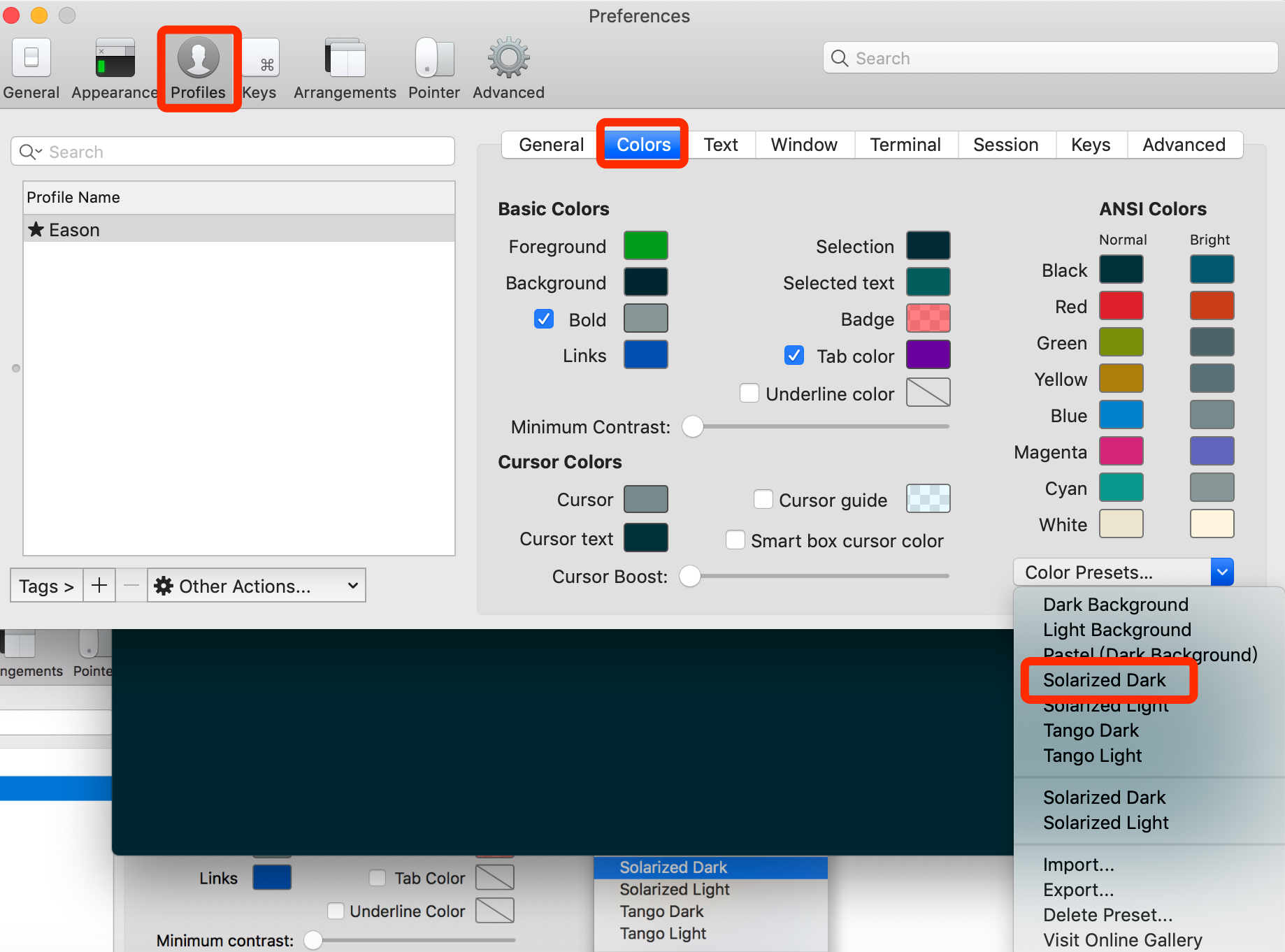
3. 配置 Oh My Zsh
Oh My Zsh 是对主题的进一步扩展,地址:https://github.com/robbyrussell/oh-my-zsh
一键安装:
$ sh -c "$(curl -fsSL https://raw.github.com/robbyrussell/oh-my-zsh/master/tools/install.sh)"

Cloning Oh My Zsh...

xcode-select: note: no developer tools were found at '/Applications/Xcode.app', requesting install. Choose an option in the dialog to download the command line developer tools.

Error: git clone of oh-my-zsh repo failed

Eason:Library linan$ sh -c "$(curl -fsSL https://raw.github.com/robbyrussell/oh-my-zsh/master/tools/install.sh)"

Cloning Oh My Zsh...

Cloning into '/Users/linan/.oh-my-zsh'...

remote: Enumerating objects: 1089, done.

remote: Counting objects: 100% (1089/1089), done.

remote: Compressing objects: 100% (1030/1030), done.

remote: Total 1089 (delta 23), reused 874 (delta 19), pack-reused 0

Receiving objects: 100% (1089/1089), 716.00 KiB | 65.00 KiB/s, done.

Resolving deltas: 100% (23/23), done.
Looking for an existing zsh config...

Using the Oh My Zsh template file and adding it to ~/.zshrc.
Time to change your default shell to zsh:

Do you want to change your default shell to zsh? [Y/n] y

Changing the shell...

Changing shell for linan.

Password for linan:

Shell successfully changed to '/bin/zsh'.
__                                     __

  ____  / /_     ____ ___  __  __   ____  _____/ /_

 / __ \/ __ \   / __ `__ \/ / / /  /_  / / ___/ __ \

/ /_/ / / / /  / / / / / / /_/ /    / /_(__  ) / / /

\____/_/ /_/  /_/ /_/ /_/\__, /    /___/____/_/ /_/

                        /____/                       ....is now installed!
Please look over the ~/.zshrc file to select plugins, themes, and options.
p.s. Follow us on https://twitter.com/ohmyzsh
p.p.s. Get stickers, shirts, and coffee mugs at https://shop.planetargon.com/collections/oh-my-zsh
➜  Library
安装好之后,需要把 Zsh 设置为当前用户的默认 Shell(这样新建标签的时候才会使用 Zsh):
$ chsh -s /bin/zsh
然后,我们编辑vim ~/.zshrc文件,将主题配置修改为ZSH_THEME="agnoster"。
$ vim ~/.zshrc
# If you come from bash you might have to change your $PATH.

# export PATH=$HOME/bin:/usr/local/bin:$PATH
# Path to your oh-my-zsh installation.

export ZSH="/Users/linan/.oh-my-zsh"
# Set name of the theme to load --- if set to "random", it will

# load a random theme each time oh-my-zsh is loaded, in which case,

# to know which specific one was loaded, run: echo $RANDOM_THEME

# See https://github.com/robbyrussell/oh-my-zsh/wiki/Themes

ZSH_THEME="agnoster"       //修改主题
agnoster是比较常用的 zsh 主题之一,你可以挑选你喜欢的主题,zsh 主题列表:https://github.com/robbyrussell/oh-my-zsh/wiki/themes
4. 配置 Meslo 字体
使用上面的主题,需要 Meslo 字体支持,要不然会出现乱码的情况,字体下载地址:Meslo LG M Regular for Powerline.ttf
下载好之后,直接在 Mac OS 中双击安装即可。
然后打开 iTerm2,按【Command + , 】键,打开 Preferences 配置界面,然后Profiles -> Text -> Font -> Chanage Font,选择 Meslo LG M Regular for Powerline 字体。
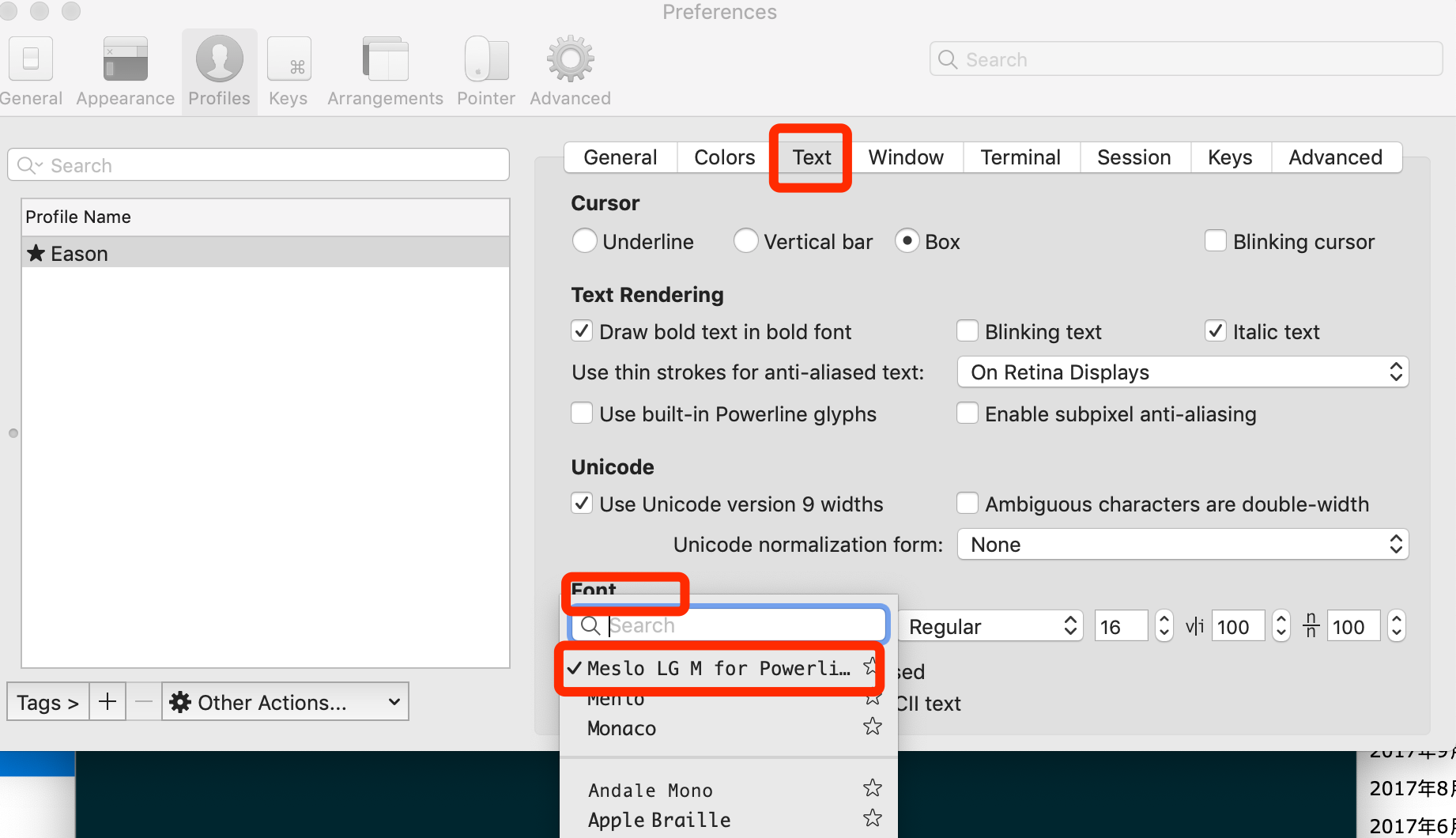
12pxCommand + ,fontFamily"terminal.integrated.fontFamily": "Meslo LG M for Powerline"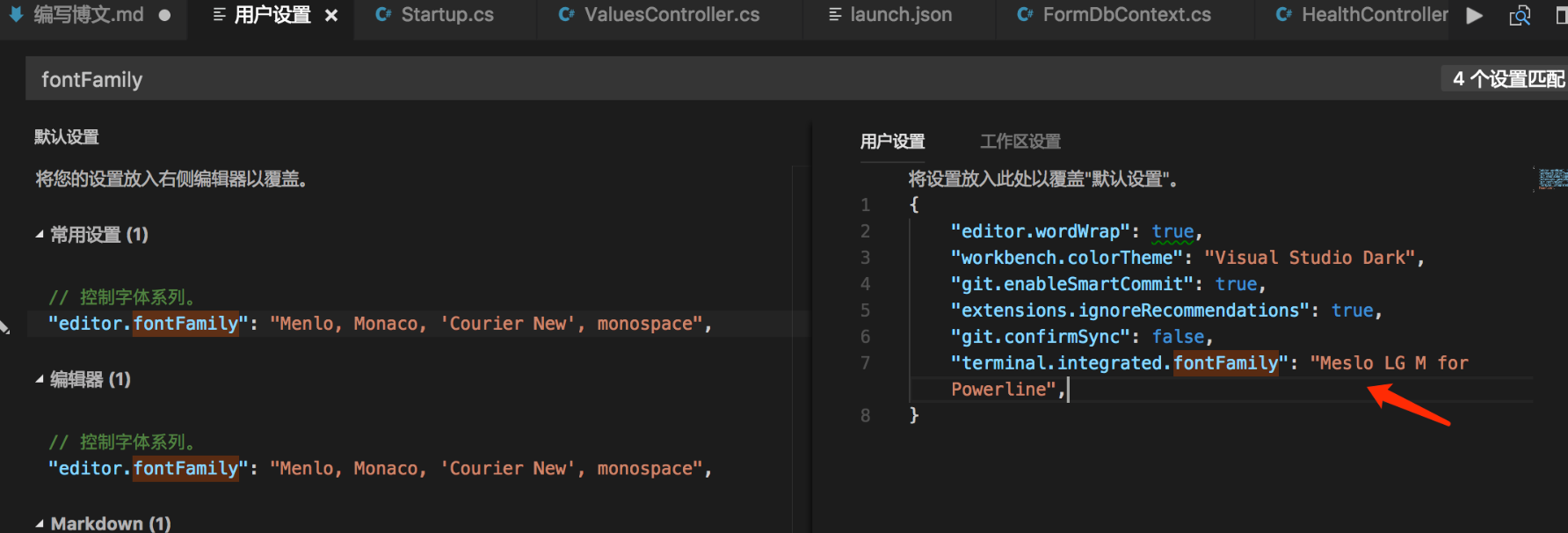
5. 声明高亮
效果就是上面截图的那样,特殊命令和错误命令,会有高亮显示。
使用 Homebrew 安装:
$ brew install zsh-syntax-highlighting
vim ~/.zshrcsource /usr/local/share/zsh-syntax-highlighting/zsh-syntax-highlighting.zsh
具体如下:
...................

# Compilation flags

# export ARCHFLAGS="-arch x86_64"
# Set personal aliases, overriding those provided by oh-my-zsh libs,

# plugins, and themes. Aliases can be placed here, though oh-my-zsh

# users are encouraged to define aliases within the ZSH_CUSTOM folder.

# For a full list of active aliases, run `alias`.

#

# Example aliases

# alias zshconfig="mate ~/.zshrc"

# alias ohmyzsh="mate ~/.oh-my-zsh"

source /usr/local/share/zsh-syntax-highlighting/zsh-syntax-highlighting.zsh
保存后,执行变量生效命令
source /etc/profile
6. 自动建议填充
这个功能是非常实用的,可以方便我们快速的敲命令。
zsh-autosuggestions$ git clone https://github.com/zsh-users/zsh-autosuggestions ~/.oh-my-zsh/custom/plugins/zsh-autosuggestions
vim ~/.zshrcpluginszsh-autosuggestions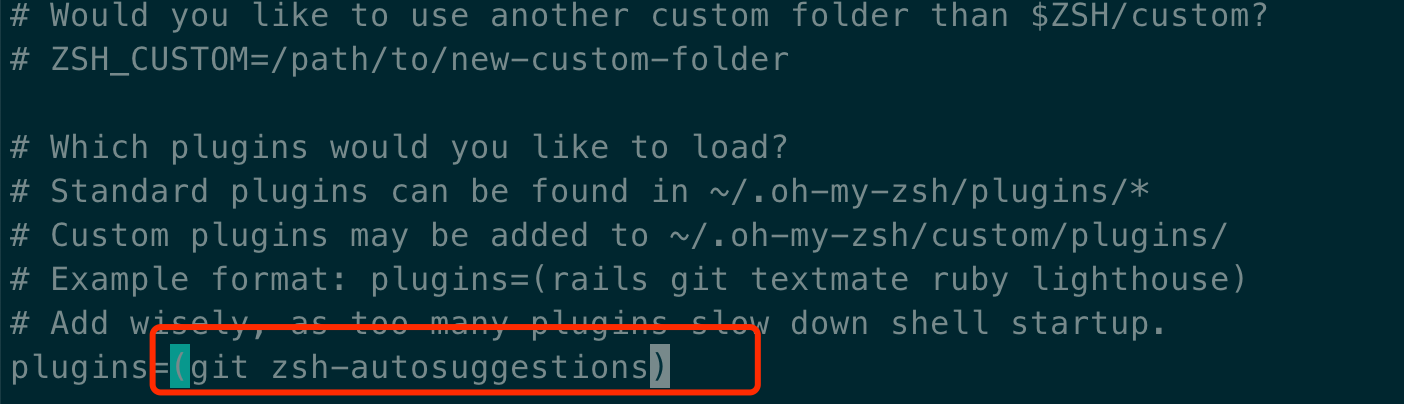
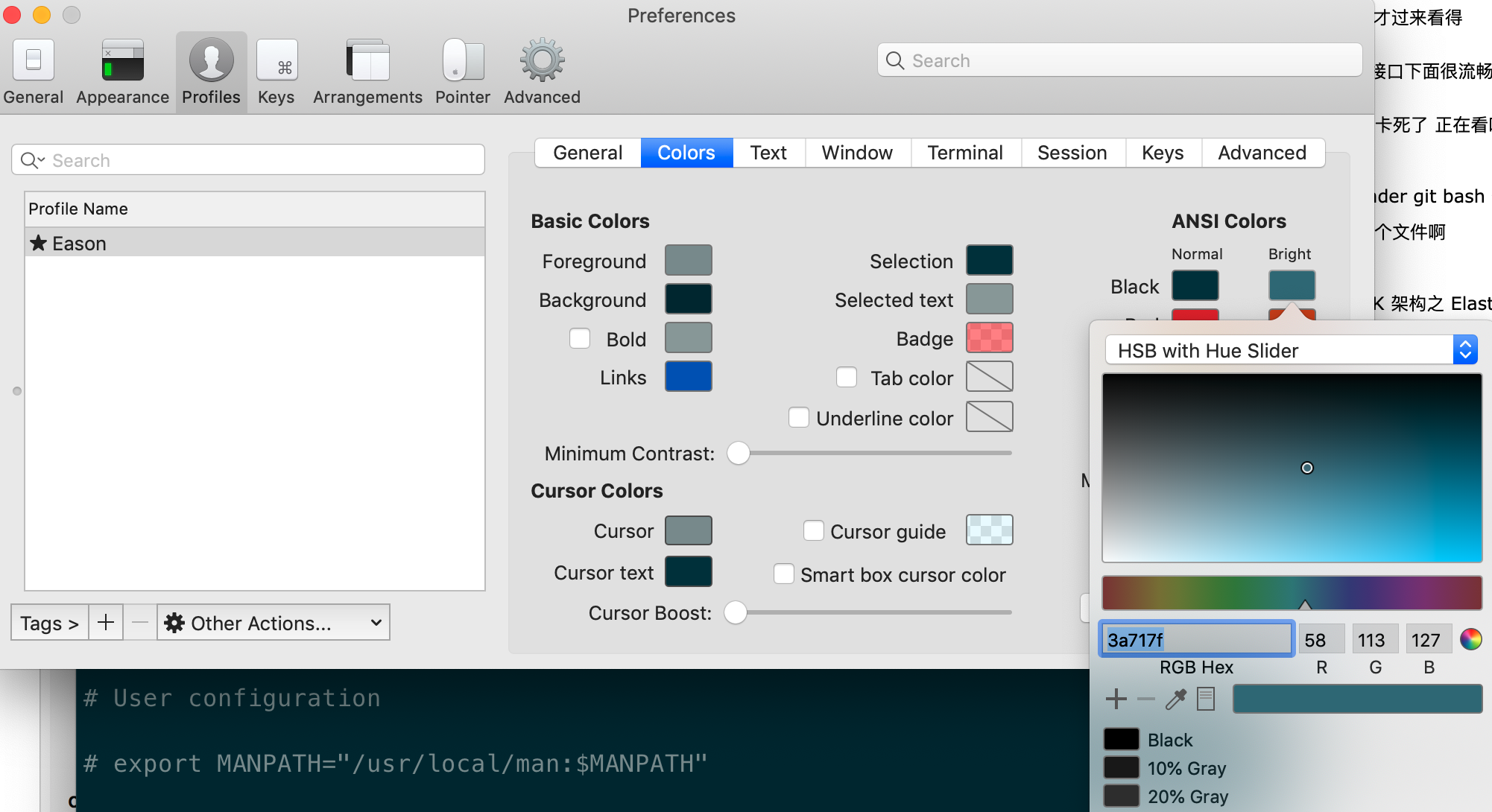
pluginszsh-syntax-highlighting有时候因为自动填充的颜色和背景颜色很相似,以至于自动填充没有效果,我们可以手动更改下自动填充的颜色配置,我修改的颜色值为:3a717f,示例:
7. 左右键跳转
option + → or ←Command + ,Profiles → Keys → Load Preset... → Natural Text Editing8. iTerm2 快速隐藏和显示
Commond + .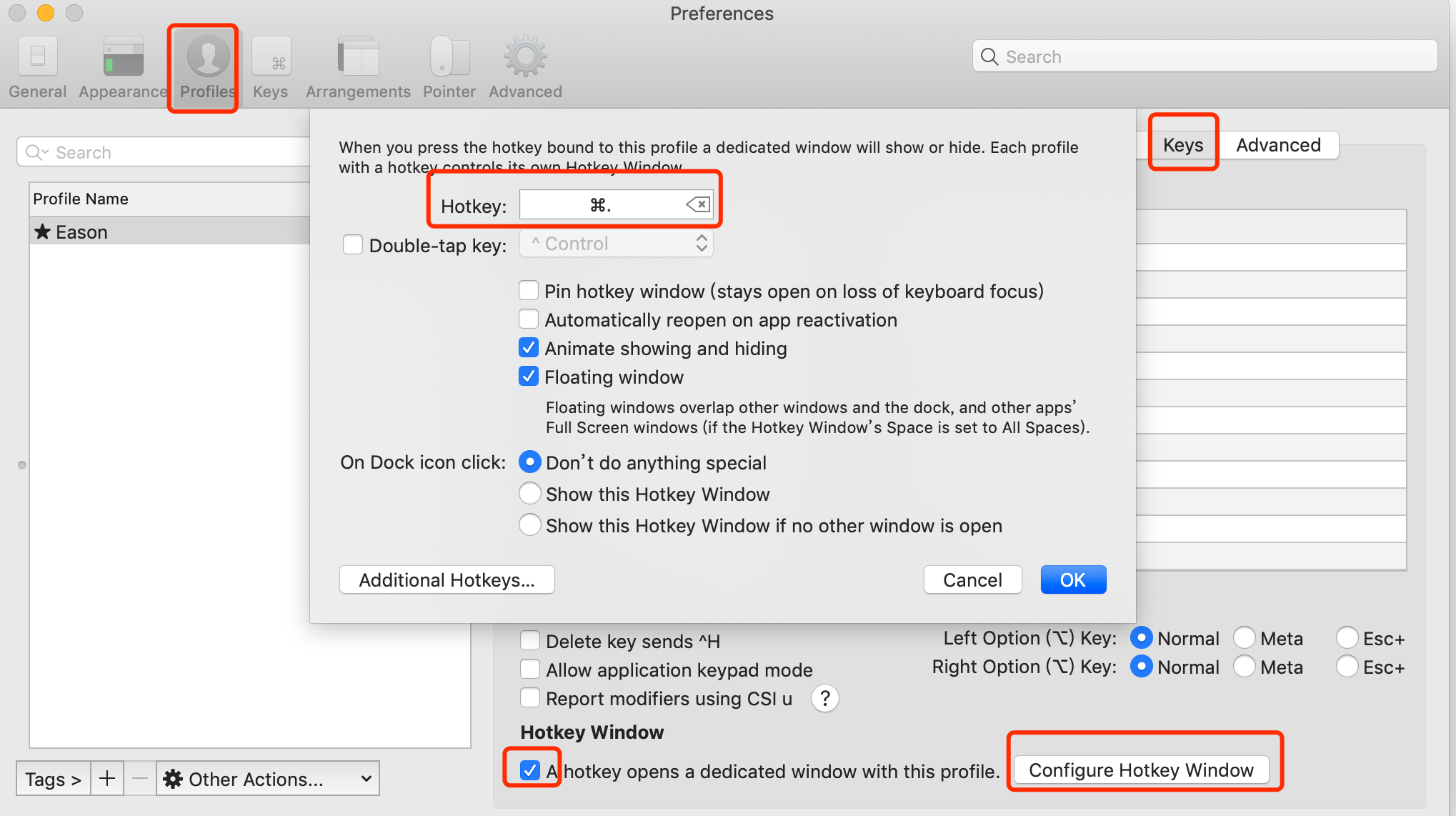
9. iTerm2 隐藏用户名和主机名
@EasondeMacBook-Provim ~/.zshrcDEFAULT_USER="eason"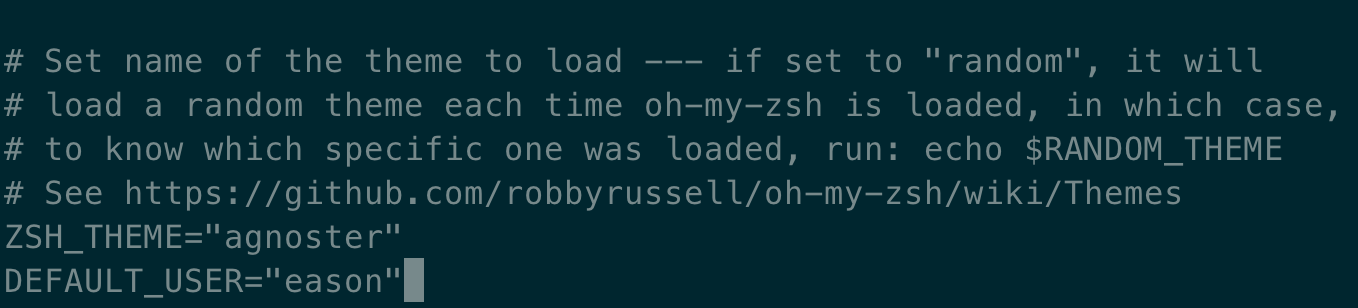
10. iTerm2 配置代理
~ vim ~/.zshrc# proxy list
alias proxy='export all_proxy=socks5://127.0.0.1:1086'
alias unproxy='unset all_proxy'
iTerm2 需要新建标签页,才有效果:
$ proxy

$ curl ip.cn

当前 IP:185.225.14.5 来自:美国
$ unproxy

$ curl ip.cn

当前 IP:115.236.186.130 来自:浙江省杭州市 电信
我们可以测试下:
$ curl https://packages.cloud.google.com/yum/repos/kubernetes-el7-x86_64
<html>

  <head>

    <title>Directory listing for /yum/repos/kubernetes-el7-x86_64/</title>

  </head>

  <body>

    <h2>Index of /yum/repos/kubernetes-el7-x86_64/</h2>

    <p></p>

    <a href="/yum/repos/kubernetes-el7-x86_64/repodata">repodata</a><br />

  </body>

</html>
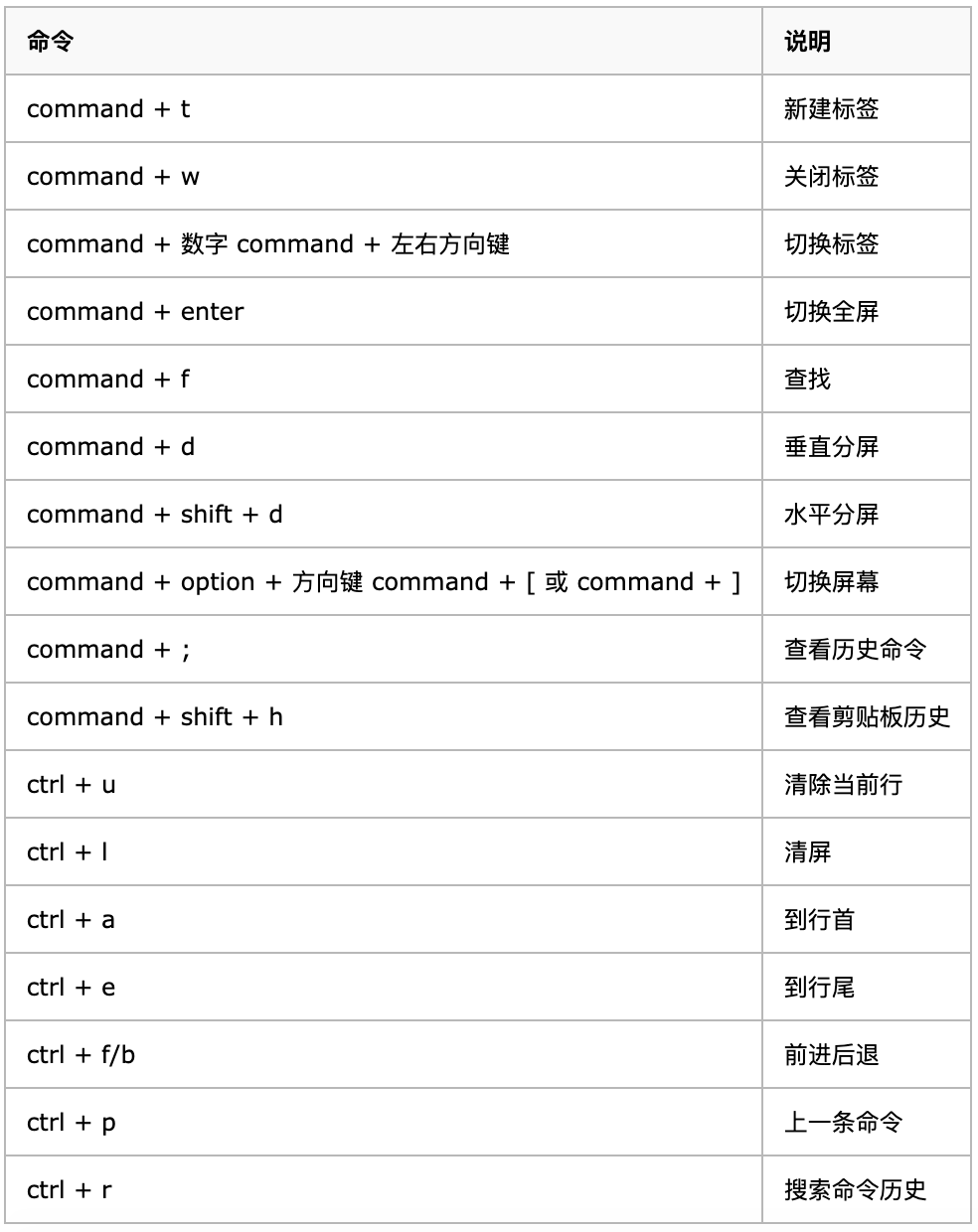
11. iTerm2 快捷命令
- 上一篇: itextpdf JAVA 输出PDF文档
- 下一篇: iso时间格式java接收
相关文章
-

itextpdf JAVA 输出PDF文档
itextpdf JAVA 输出PDF文档
- 互联网
- 2026年06月03日
-
itextsharp 打印pdf文件
itextsharp 打印pdf文件
- 互联网
- 2026年06月03日
-

ITTC数据挖掘系统(六)批量任务,数据查看器和自由文档
ITTC数据挖掘系统(六)批量任务,数据查看器和自由文档
- 互联网
- 2026年06月03日
-
iso时间格式java接收
iso时间格式java接收
- 互联网
- 2026年06月03日
-

ISoft(开源)专用下载器
ISoft(开源)专用下载器
- 互联网
- 2026年06月03日
-
islide 结构图
islide 结构图
- 互联网
- 2026年06月03日